
Category: Troubleshooting Common Issues
How to Change Text Input on a Yealink Phone (Letters vs Numbers)
To change the text input on a Yealink phone from letters to numbers, press the soft key below the current input type on the screen. This will cycle through the available input modes, including lowercase letters, uppercase letters, mixed input mode, and numbers only. Stop when the numbers only mode, indicated by 123, is selected, and then enter your password using the keypad. This should resolve the issue of the phone typing letters instead of numbers.
If you’re trying to enter a Wi-Fi password or other code on a Yealink phone and the phone keeps typing letters instead of numbers, the input mode just needs to be changed.
Yealink phones let you switch between different text entry types, such as:
abc = lowercase letters
ABC = uppercase letters
2aB = mixed input mode
123 = numbers only
How to switch to numbers on a Yealink phone
Go to the field where you’re entering the password.
Look at the bottom of the phone screen for the current input type (such as abc, ABC, or 123).
Press the soft key directly below the input type shown on the screen.
Each press will cycle through the available input modes:
abc
ABC
2aB
123
Stop when 123 is selected.
Now enter your password using the keypad.
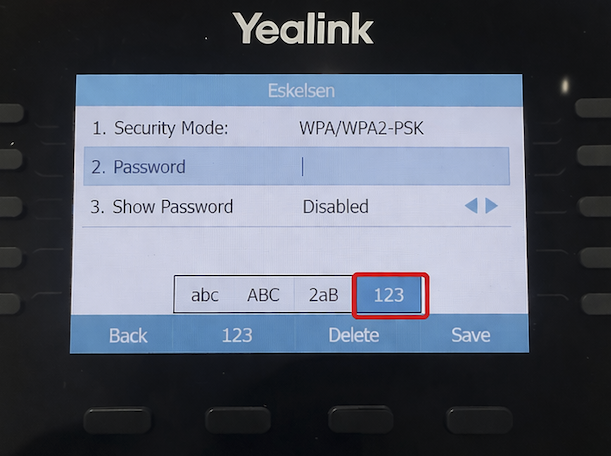
Example
If your password is all numbers but the phone is typing letters, keep pressing the soft key under abc / ABC / 2aB / 123 until it shows 123.
Once 123 is selected, the keypad will enter numbers instead of letters.
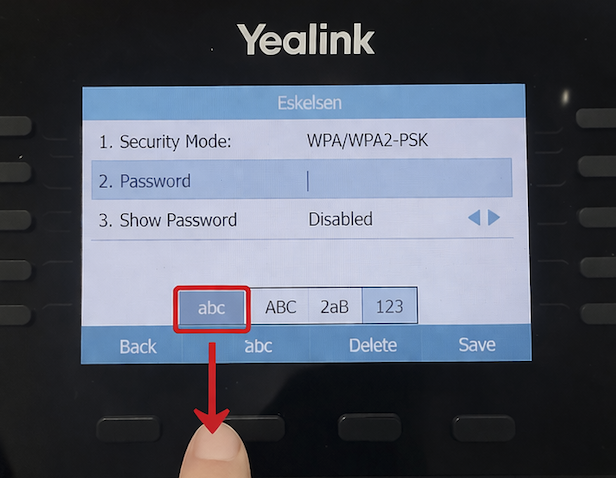
Tip
If you need to verify what you entered, you can also enable Show Password on the screen (if available) before saving.
Still not working?
Make sure 123 is highlighted on screen
Press the soft key below the input mode, not the arrow keys
Double-check whether the password includes a mix of letters, numbers, or symbols
If you still need help, contact support and we’ll be happy to walk you through it.